Check a class and a QR check-in
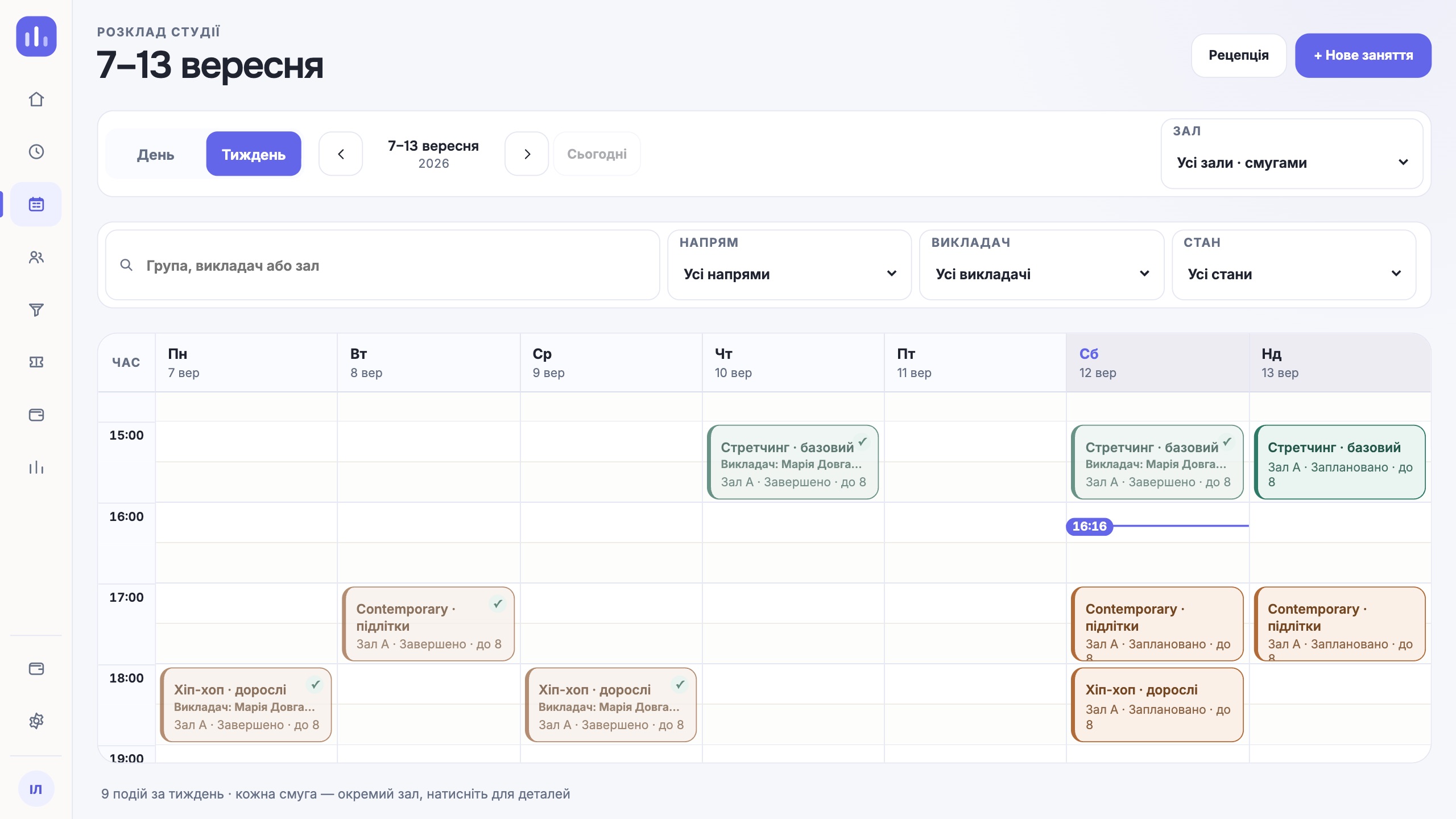
Find a class by date, location and room, check the list of people, scan the client’s QR code and read the attendance result and membership balance.
- Who it is for
- Team members with access to the schedule and attendance.
- What to prepare
- The date and location, the class and the client’s personal QR code.
Steps
- In the schedule, choose the date, location and class.
- Check the time, room and group; save a change to the class only after checking for conflicts.
- Open the studio scanner and scan the client’s QR code.
- Read the result and check the attendance log and what is left on the membership.
Result
An allowed visit shows in the class and on the membership; a repeat scan gets a separate result.
If it did not work
No class, a membership that does not fit or an expired QR code: check the stated reason. An offline check-in stays provisional until it syncs.