What the free offer means
AI data migration and the assistant in the CRM are free: there is no separate charge for them, and automatic billing is not switched on. AI migration has to be activated by the ClubBase team. Before starting, the team will clarify which materials you can share and which limits apply.
| Method | What you need | Next step |
|---|---|---|
| Spreadsheet import | A CSV or XLSX file with data the current import supports | Map the columns, review the rows and confirm |
| AI migration | A description of your studio’s sources and materials | Check availability, formats and limits with the ClubBase team |
What you can do with a spreadsheet now
The current import works with CSV and XLSX. You map the columns, review rows and errors, and then confirm the changes yourself. This way you can prepare clients, groups, memberships, classes remaining and current debts. The schedule, team roles and message history need separate work.
Formats, file limits and the review order are described on the data migration page. Before importing, keep a copy of the source spreadsheet and compare a few records with what you see in the preview.
How to request AI migration
Tell the ClubBase team where the data needs to come from and how it is stored now. The team will confirm AI migration availability, supported materials and limits before work starts. You review and confirm the prepared result before it is saved.
You can prepare a spreadsheet for import or describe your case to the ClubBase team. Do not include data you have no legal grounds to process.
What to check after you start
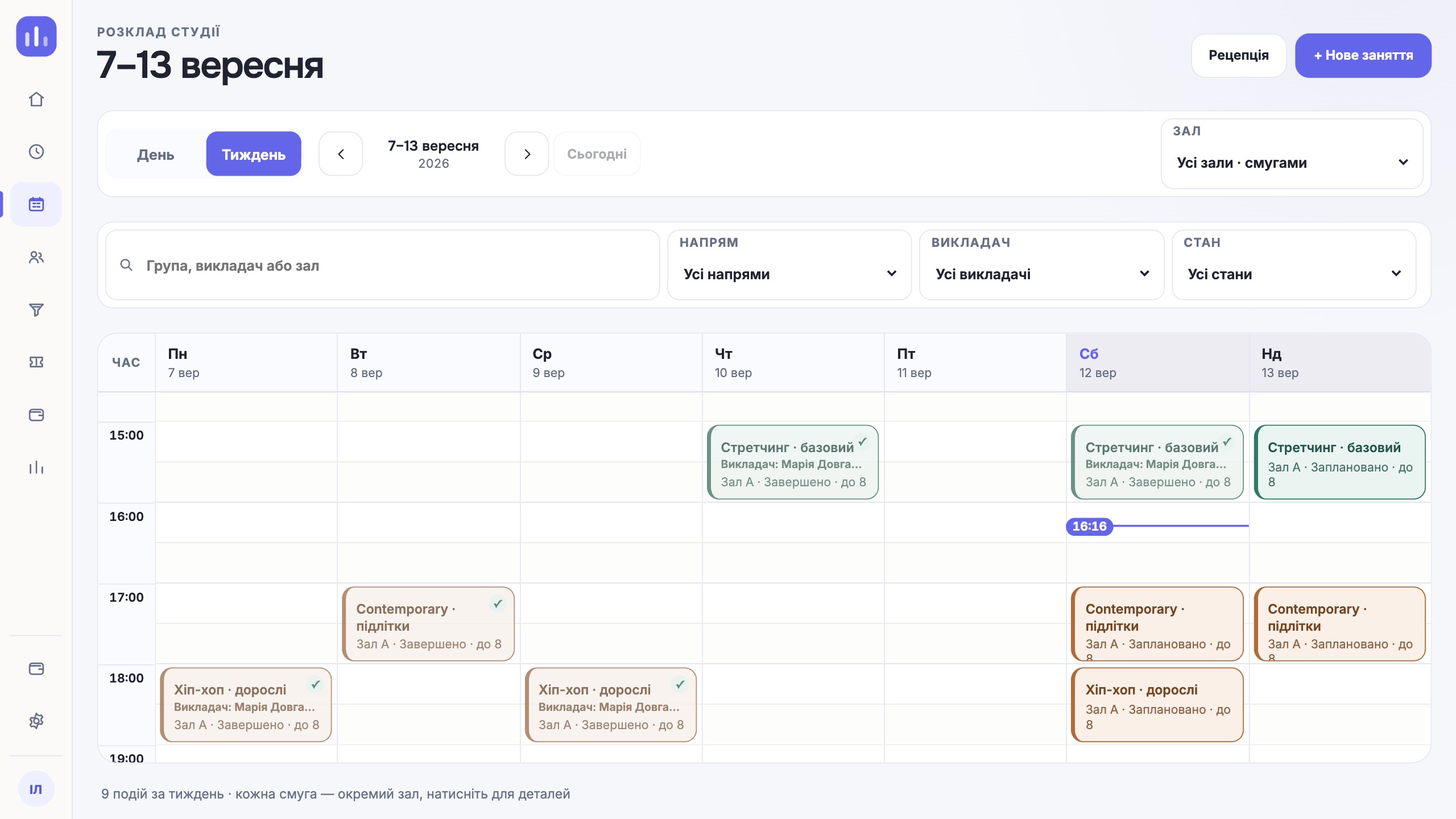
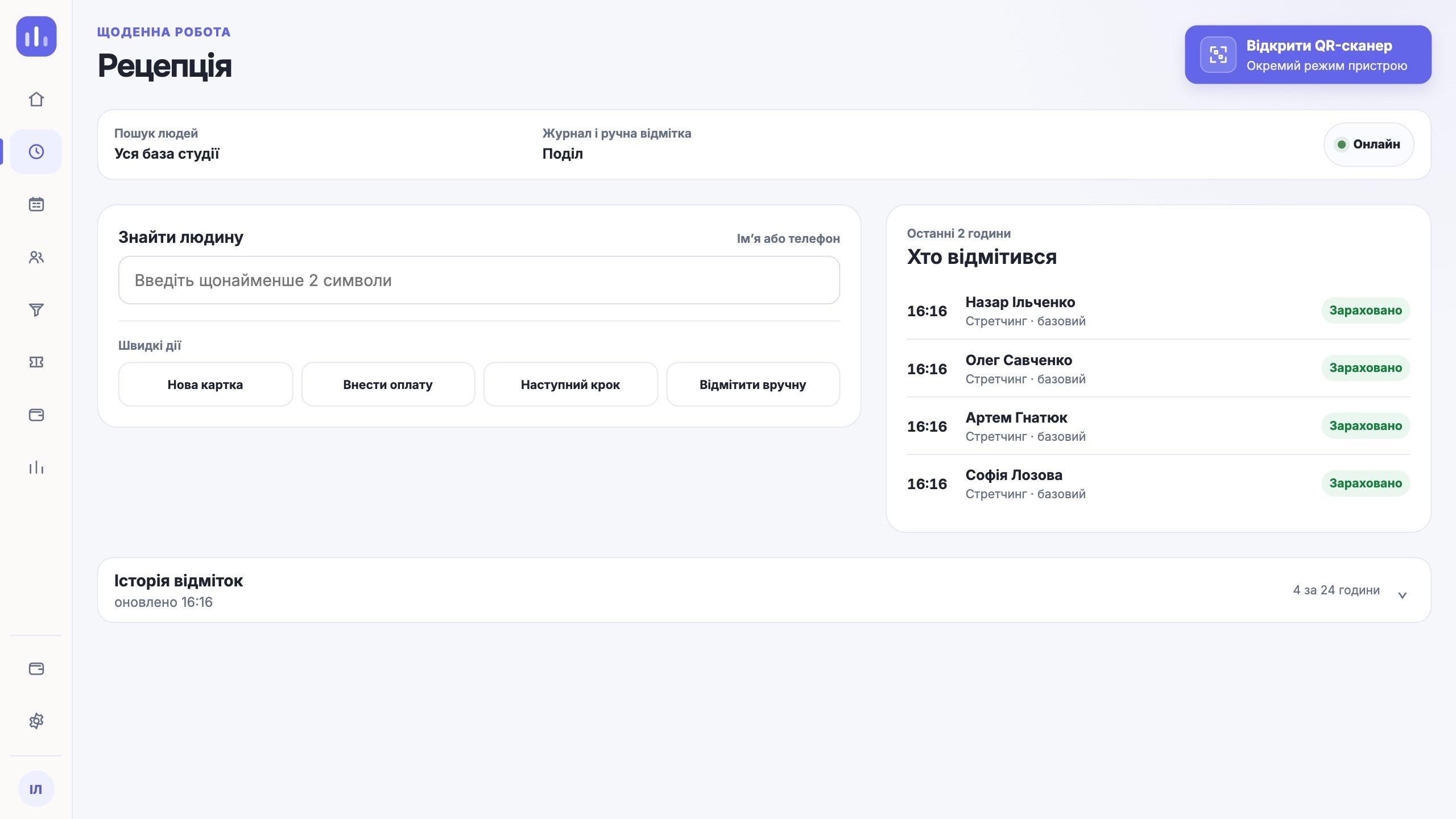
After setting up the studio, walk through your usual working route: are the classes in the right place in the schedule, and can the team find a person and check them in? Below are CRM screenshots from a demo studio. They show working screens, not an AI migration preview; the schedule is set up separately from the spreadsheet import.
One next step
Start by registering your studio and importing a small spreadsheet you have checked. If you need AI migration, describe your sources to the ClubBase team: availability, formats and limits will be confirmed before work starts. There is no separate charge for AI, and automatic billing is not switched on.
Create a studio