What to check in a demo
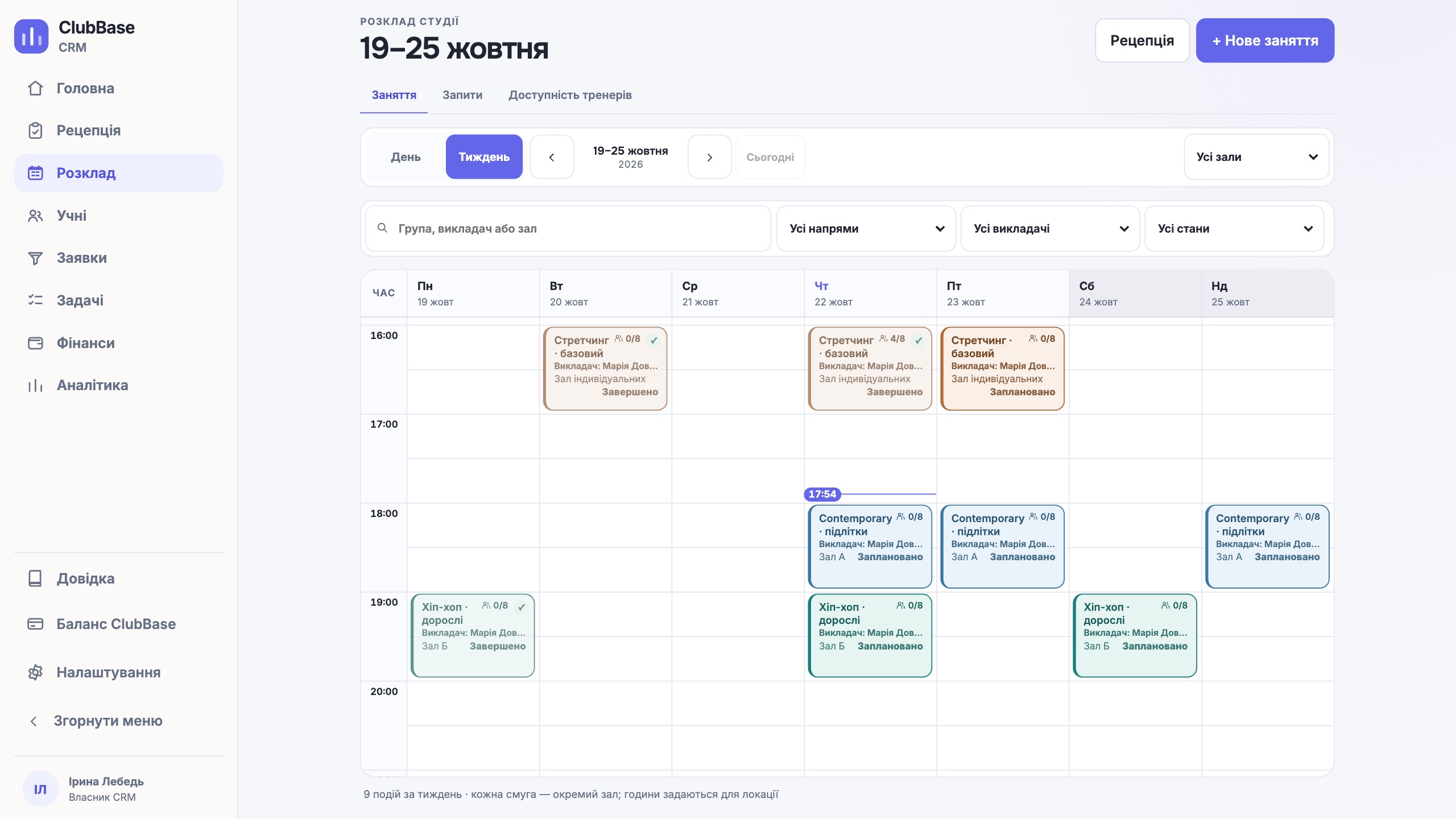
In product descriptions every schedule looks alike: a weekly grid with coloured blocks. The difference shows when you put your real week into that grid, with two rooms, a coach covering for a colleague and a group with fewer spots than people who want in. Six points are enough for that test.
| What to check | What it looks like in practice |
|---|---|
| Recurring class | A Tuesday and Thursday group is set up once, not retyped every week |
| Room and coach availability | A second class at the same time does not save, and you see who is busy |
| Capacity limit | You cannot book an extra person into a full group |
| Waitlist | A freed spot goes to the next person in line, with no calls from the administrator |
| Schedule on the client side | People see the time and room themselves and book without messaging |
| Coach substitution | The change is in the schedule, not only in the team chat |
Below is how each point works in ClubBase. Ask any other vendor to show you the same things.
Repeats: the week is set up once
A studio schedule is mostly repeats: the same group on the same days. If the software makes you copy classes by hand every week, a mistake shows up by week three. In ClubBase a recurring class is created once: you set how many days pass between classes and the end date. The series is laid out ahead, up to a year.
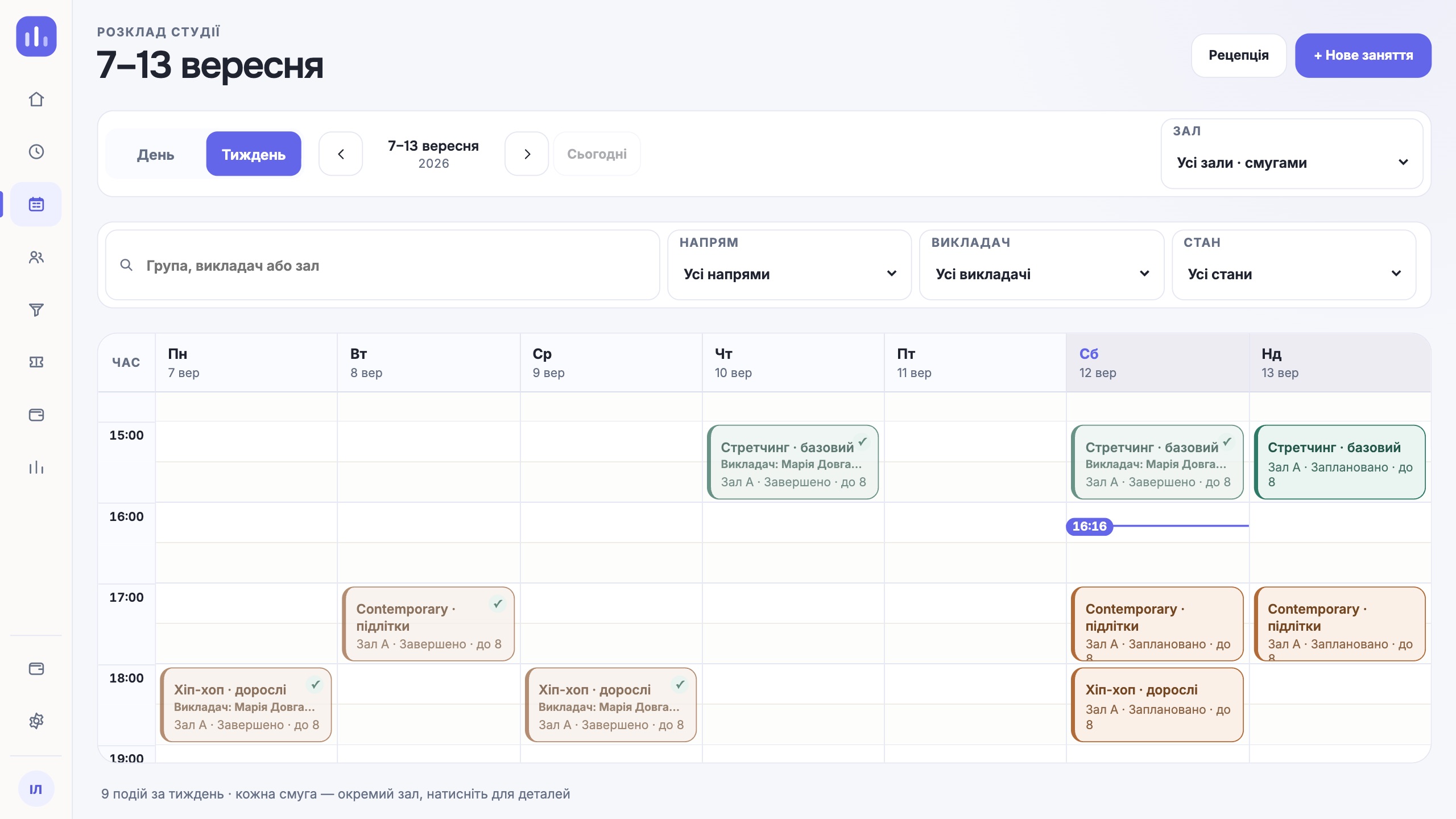
In the demo, schedule your busiest group a month ahead and count the steps it took. Then open one class in the series and try to change only that one. This shows whether the software tells a one-off change from a change to the whole series.
Rooms and coaches: the clash shows before you save
A clash is usually noticed when two groups are already standing at the door of one room. The software should check availability at the moment the administrator saves the class. In ClubBase a class always belongs to a specific location and room. If the room or the coach is already taken at that time, the class does not save, and the form says who is busy.
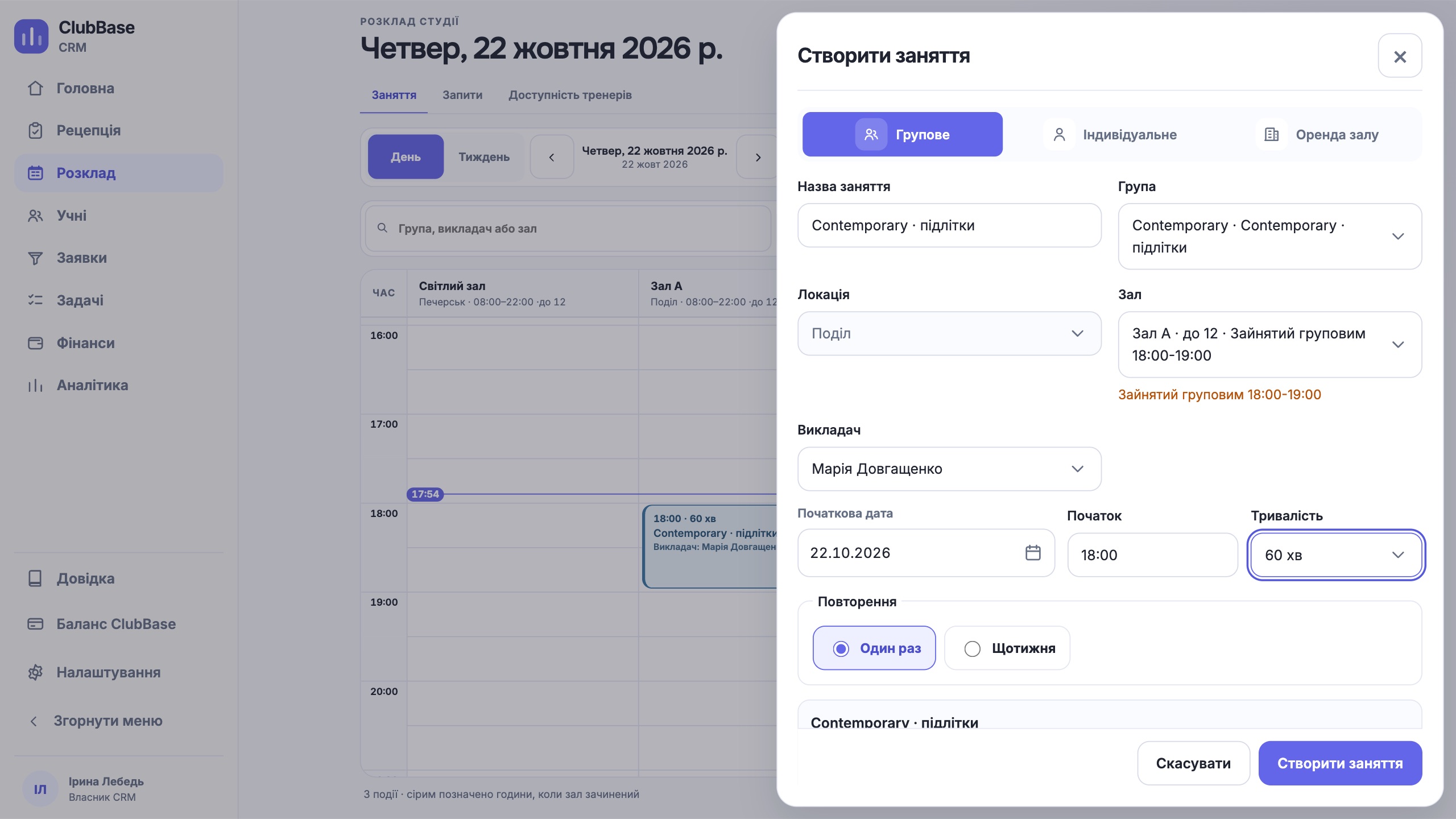
A coach cannot be put on two classes at once, even when they are at different addresses. A group class takes the whole room. If several coaches run one-to-one sessions in one room at the same time, you turn on «Кілька індивідуальних одночасно» (several individual sessions at once) for that room and set a limit.
How to agree in the team on who makes changes and what to check daily is covered in the article on a schedule without clashes. For a studio with several addresses there is a separate guide: several branches in one CRM.
Spots in a group and the waitlist
A yoga studio has exactly as many spots as mats fit in the room. So the schedule has to know the capacity and stop bookings when the group is full. In ClubBase capacity comes from the group and the room, and the system will not let you book an extra person.
That person goes on the waitlist for the class. When someone cancels, the spot is offered to the first person in line for 30 minutes, then moves to the next. The administrator does not have to call down the list.
How this works for classes with limited spots is shown on the page CRM for a yoga studio.
The schedule on the client side: Telegram instead of messages
A schedule only the administrator can see produces a daily "what time is it tomorrow?". In ClubBase clients view the schedule in Telegram and book themselves. The booking rule is set per group: instantly, on request, or only through the administrator. Class time is shown in the time zone of the location the person is going to.
The bot reminds people about a class according to the studio's settings, for example a day ahead. If a person cannot come, they tap «Не прийду» (can't come), and the spot is released to the waitlist.
Substitutions, cancellations and check-in after class
A coach is ill, three people in the chat know about the substitute, and clients arrive to find a different instructor. In ClubBase a substitution goes through the studio's confirmation and changes the schedule where clients look at it. Coaches see their own classes and substitutions in the schedule.
A class can be changed or cancelled right from the schedule. The activity log keeps who did it and when, so "who moved Thursday" has an answer.
After class the schedule turns into attendance: the client shows a QR code at the door or the administrator marks them in the class log. More in the article on QR attendance check-in.
Questions about scheduling software
Is an ordinary calendar enough for a studio?
For one group in one room, yes. A calendar shows the time, but group capacity, the waitlist and memberships have to be kept somewhere else. With a second room or a tenth group those checks become manual work for the administrator.
Can one-to-one sessions run in the same room at the same time?
Yes, if «Кілька індивідуальних одночасно» is turned on for the room and a limit is set. A group class takes the whole room, and nothing else can be placed next to it.
What does a coach see in the schedule?
Their own groups, classes and substitutions. The studio's overall finances are not open to a coach.
Is the schedule a paid add-on?
No. The price of ClubBase depends on the number of active students, and every feature is included in every range. Current figures are on the pricing page.
One next step
Put one real week of yours into the software: every group, room and coach. Try to create a clash and to book a person into a full group. If the software stopped you both times, you can run your schedule in it.
Try it free