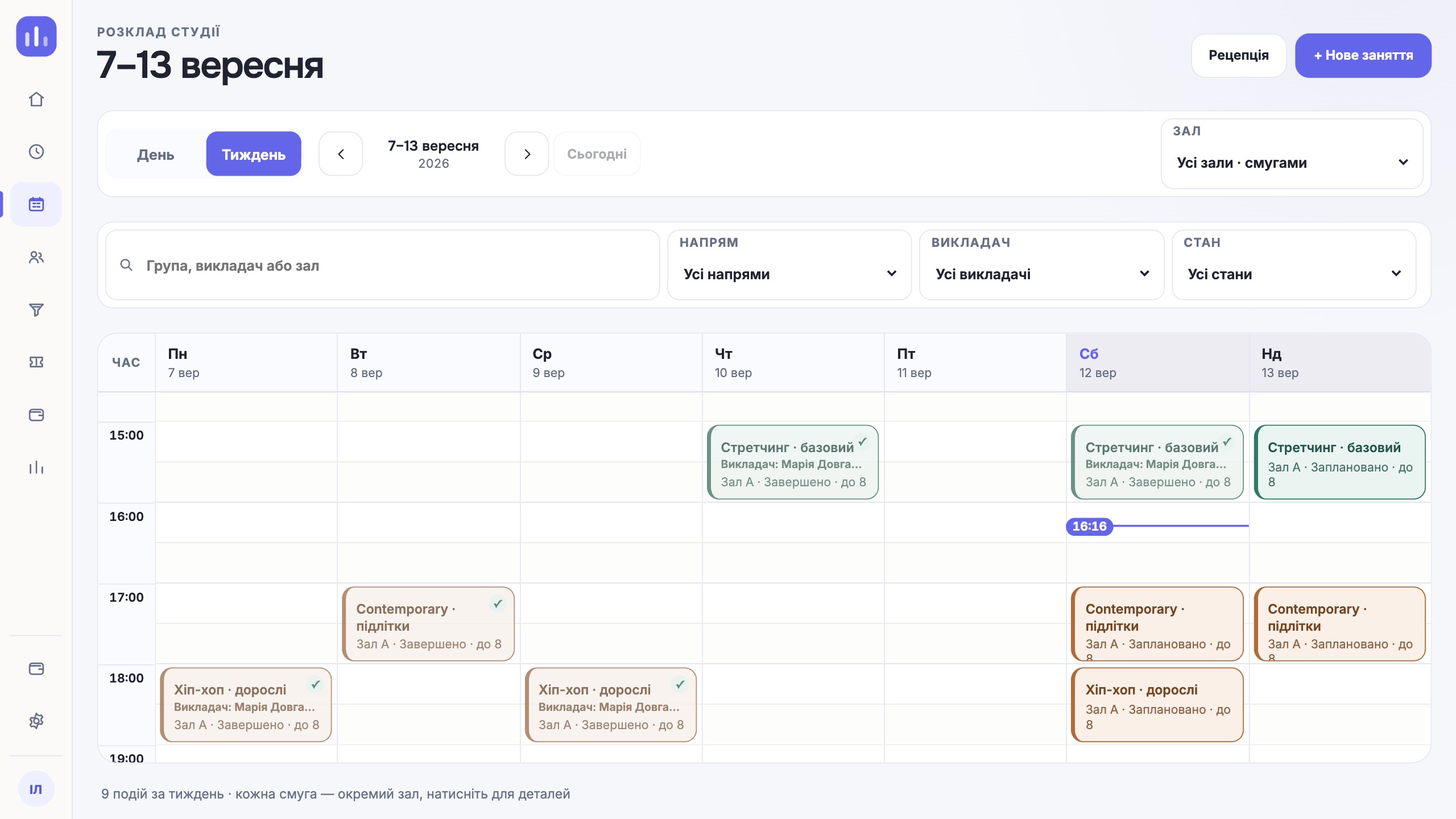
Below are changes already available in the CRM, with short pointers on where to find them. The names for people and groups in your studio may differ: ClubBase uses the terms you selected in settings.
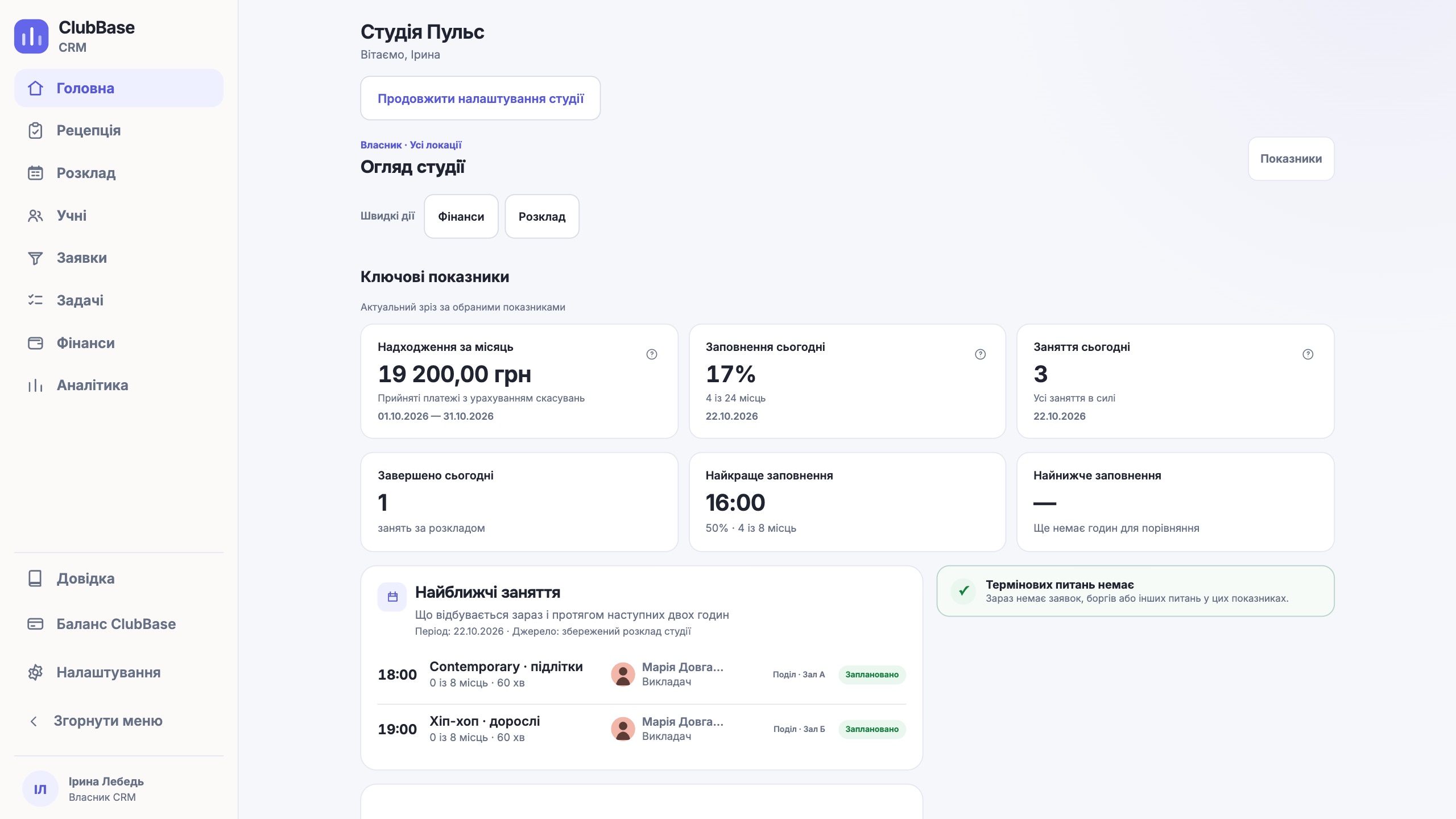
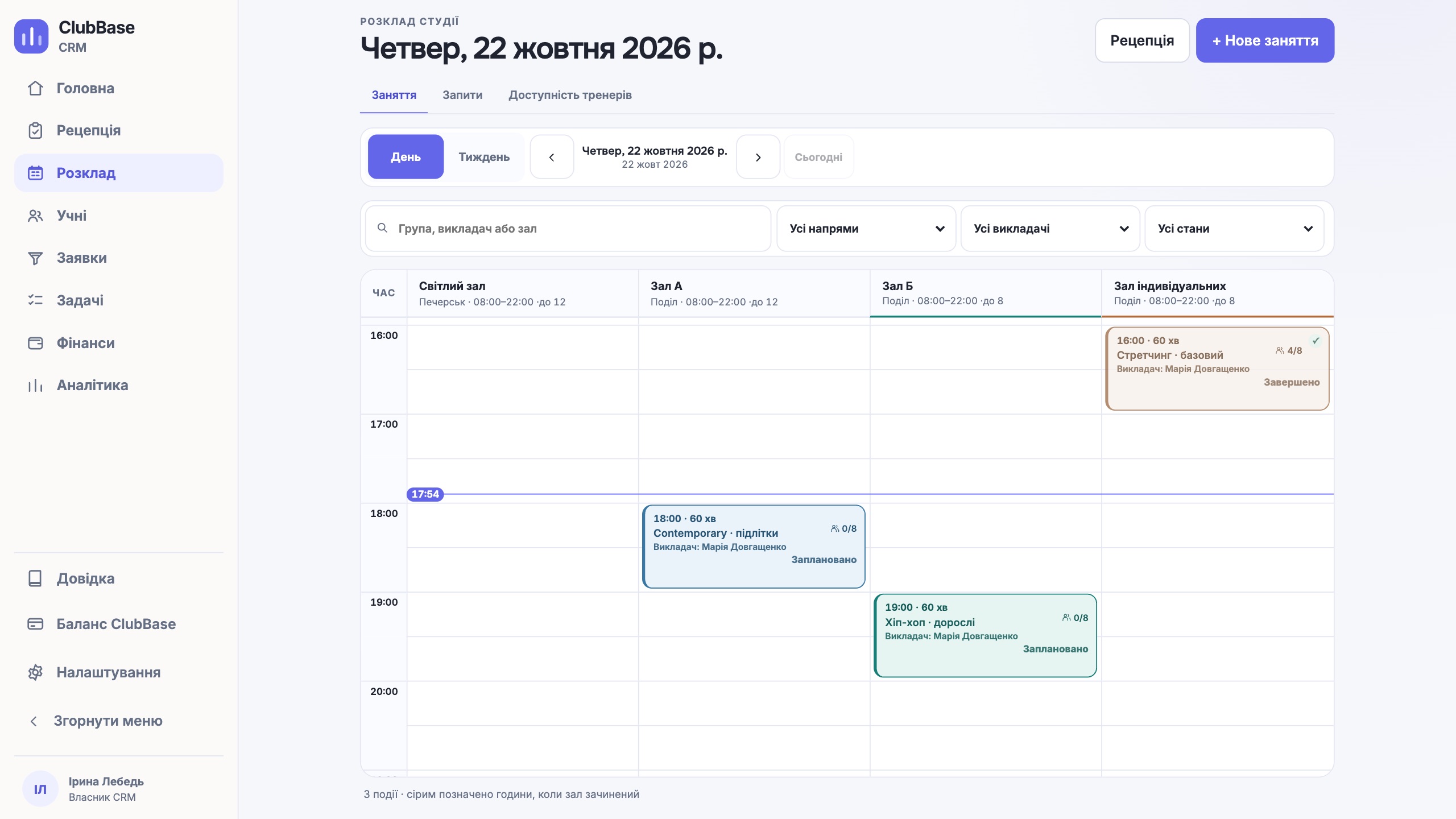
More compact screens for daily work
The dashboard, reception and schedule have updated layouts. Leads, tasks and finances have also changed. For studios with one location, reception no longer repeats the location name unnecessarily.
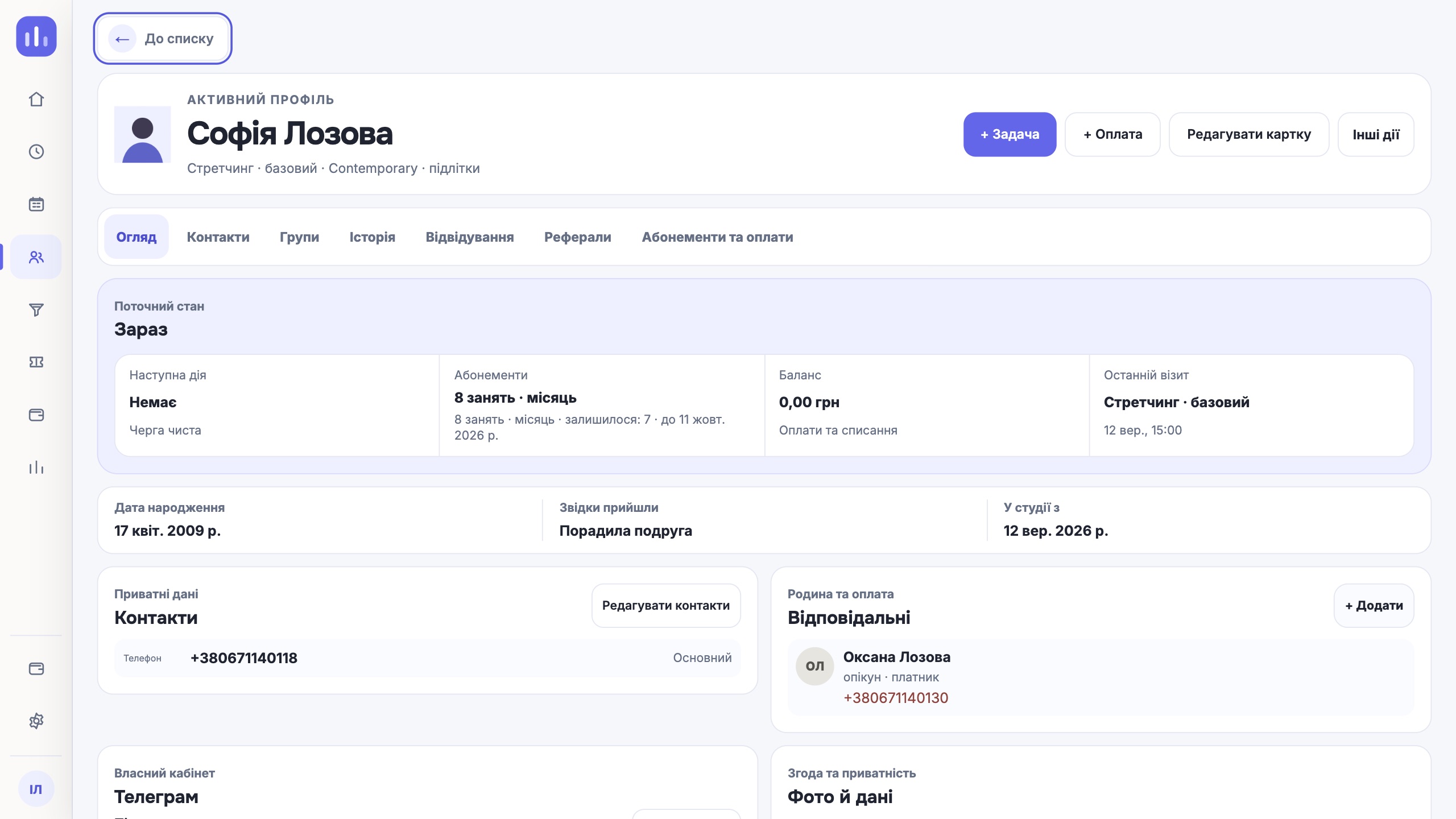
Attendance history now shows membership usage more clearly. For example, “Counted against membership (5 of 8)” («Зараховано за абонементом (5 з 8)») means five of the eight visits have been used so far. This is the current membership status; it may change after the next class.
Open Reception («Рецепція») and view a person’s history to see the updated display on a familiar example.
Lead stages that match your studio
Leads («Заявки») now has a board with columns. You can set stage names, their order and colours through Stages («Етапи»). Drag a card to another column or use Move («Перемістити»).
A card shows the person’s contact details and enquiry source, along with the next planned action. If no action is planned yet, the board shows that too. An admin can start a shift by reviewing leads without a next step and deciding whom to reply to.
The board suits studios that already have a process for enquiries: you can name the stages using your team’s own terms.
Website enquiries in your CRM
The studio owner can open Settings («Налаштування») → Leads from your website («Заявки з вашого сайту»), add the website address and get form code to embed on a page. If you have your own form, a connection example is available for your website developer.
A new enquiry appears in Leads («Заявки») with the website source. If that person already has an open lead, the message is added to its history and the original source is preserved. You can disable the connection; enquiries already received stay in the CRM.
Send lead events to another system
In Settings («Налаштування») → API and integrations («API та інтеграції») → Event delivery («Доставка подій»), you can choose events to send to another system’s address: a new lead, a stage change or a won lead. This automatic message from the CRM is called a webhook.
The log shows delivery status and individual attempts. A developer usually sets up the connection and message handling. Form enquiries come into the CRM, while webhooks send selected events from the CRM to the configured recipient.
Several individual classes at the same time in one room
In the schedule, open coach availability to select locations and set weekly working hours. You can add several intervals within one day, leaving a break between them. Individual classes take the saved hours into account.
If several coaches work in a large room at the same time, enable Multiple individual classes at the same time in this room («Кілька індивідуальних одночасно в цьому залі») in the room settings and set a limit. A busy coach or a group class in that room still causes a conflict.
For example, a limit of three individual classes lets you schedule three separate classes with different available coaches. A fourth requires another time or room.
Trial class rules and attendance corrections
In Settings («Налаштування») → Trial classes («Пробні заняття»), you can choose a paid or free trial and set separate coach pay. The price and terms of an existing trial booking stay the same when you change the rule for future bookings.
If attendance was marked incorrectly at reception, use Correct an incorrect attendance mark («Виправити помилкову відмітку»). It asks you to give a reason. When manually marking attendance for a previously booked trial, the terms of that booking apply.
Before the next trial class, check the settings: the admin and coach should work with the terms your studio agreed with the person.
Catalogue changes that preserve sold terms
In the Memberships («Абонементи») catalogue, you can edit a plan’s rules. Memberships already issued keep their terms: catalogue changes apply to future issues.
Admins manage pauses separately. In Membership pauses («Паузи абонемента»), you can grant one pause or remove it with an explanation. Removal takes the unused term extension into account. These are admin actions.
When changing your studio’s offer, open the catalogue, then check a previously issued membership in the person’s profile. This lets you review the new plan and the terms of a particular membership separately.
Freeze a membership from the client account
If your membership terms allow a self-service freeze, you can open the membership in your client account and select Freeze membership («Заморозити абонемент»). The screen shows the permitted duration, remaining days and periods, and the required notice.
Before confirming, the client sees whether the end date will change and the specific future class places and bookings that will be released. The freeze follows the terms sold with the membership: it takes effect immediately or after studio approval. The pause does not take effect before approval; a pending request can be withdrawn.
Analytics for the period you need
Studio analytics («Аналітика студії») offers This month («Цей місяць»), Previous month («Попередній місяць») and Custom dates («Власні дати»). You can view attendance and occupancy for a period within twelve months and compare groups and coaches.
The Best and weakest hours («Найкращі й слабкі години») block helps you see how attendance varies through the week. Lead source data also follows the selected period. This gives you a basis for a specific discussion with your team: which hours to review and which groups need attention.
Report a problem directly from the CRM
If something is not working as expected, open Report a problem («Повідомити про проблему») and describe what happened. You can send a report without a recording. Do not include personal or payment details in the description.
If you can reproduce the problem, select Start recording («Почати запис») and repeat the actions in the CRM. This creates an activity log, not a screen video. After stopping, you can review the events and choose Send report («Надіслати звіт») or Cancel and delete recording («Скасувати й видалити запис»). Starting a recording does not send anything.
My requests («Мої звернення») keeps the conversation history. You can read the support reply there and add details to an open request.
See what the assistant did in the activity log
After a confirmed assistant action, the activity log shows what was created or changed and who confirmed it. For example, you can distinguish creating a lead from adding a person to a group. Cancelled actions and errors have separate labels.
One next step
Start with one screen you use every day. For example, open Leads («Заявки») and check the cards without a next action.
Open the CRM