Open the right profile
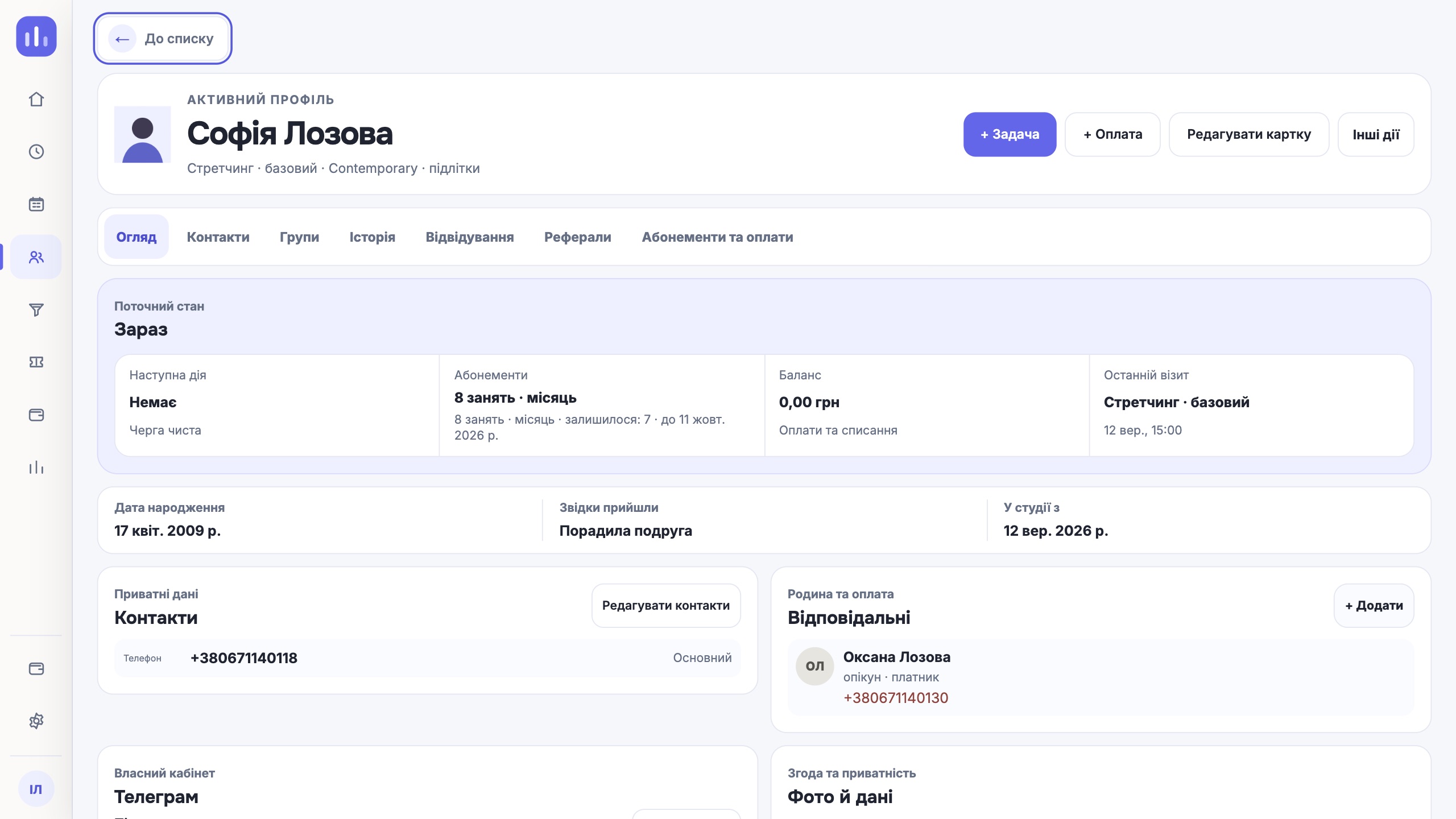
Find the person in the CRM and open the Telegram («Телеграм») block in their profile. Check the name and contact before creating an invitation. The personal link must go to exactly the person it was created for.
The connection works with the live database and a configured bot. In demo mode you cannot create a real invitation. If the button is missing or you see a message about insufficient permissions, ask the owner to check your role’s access.
If the contacts are not in order yet, start by checking the data and responsible people in the profile.
Create a personal invitation
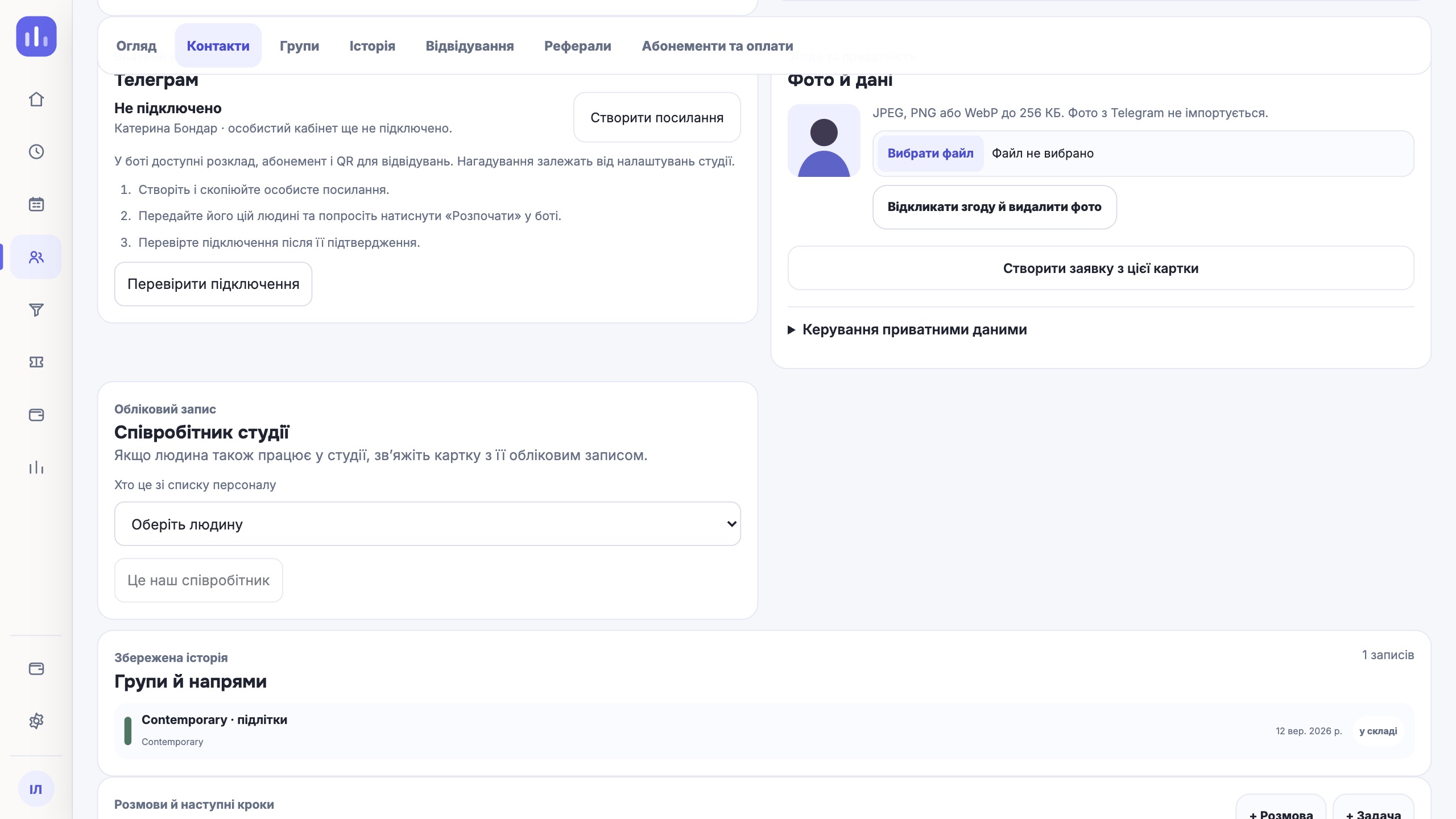
- Click Create link («Створити посилання»). The system then shows the link and how long it is valid.
- Click Copy («Скопіювати»). If the browser did not allow copying, select the link in the field and copy it manually.
- Send the link to this person privately and ask them to open it in Telegram and tap Start.
Check that the connection is complete
After the person has acted in the bot, click Check connection («Перевірити підключення») in the CRM. A completed connection shows the Connected («Підключено») mark, the name or username of the Telegram account and the connection time. Check that it is the account you expect.
| What is shown | What it means | What to do |
|---|---|---|
| Not connected («Не підключено») | No Telegram account is connected to the profile yet. | Create an invitation for this person. |
| Waiting for connection («Очікує підключення») | An invitation exists, but the connection is not complete yet. | Ask the person to open the current link and start the bot. |
| Connected («Підключено») | A Telegram account is attached to the profile. | Check the account and ask the person to open their schedule. |
| Loading error («Помилка завантаження») | The CRM could not read the status. | Repeat the check; do not treat this as a missing connection. |
If the connection did not complete
The person opens an old link
Check how long the invitation is valid. If you have already created a new one, send that one and explain that the previous link no longer works. After they try again, check the status in the profile.
The CRM says the bot is unavailable
Ask the studio owner to check the bot settings. Creating the profile again will not fix a missing connection. If you see a connection error, first try reading the status again.
A different account is connected
An authorised person can click Disconnect («Відключити») and then create the right invitation. Agree on this with the person first, because disconnecting stops notifications to the previous account.
Ask the person to check the bot
The current bot shows the schedule, membership and QR code through commands. Ask the person to find their next class and check their membership details. What they see depends on which classes and memberships the studio has already set up.
Reminders depend on the studio’s settings. The connection itself does not prove that a particular reminder has been sent or received. You can read more about current Telegram features in the feature overview.
Start with one person, and only after this check repeat the connection for the group. Add this step to your first-week plan in the CRM.
One next step
Open the Telegram block in one profile and read its status. If it says Waiting for connection («Очікує підключення»), the next step is to help the person open the invitation and then check the result.
See Telegram features